
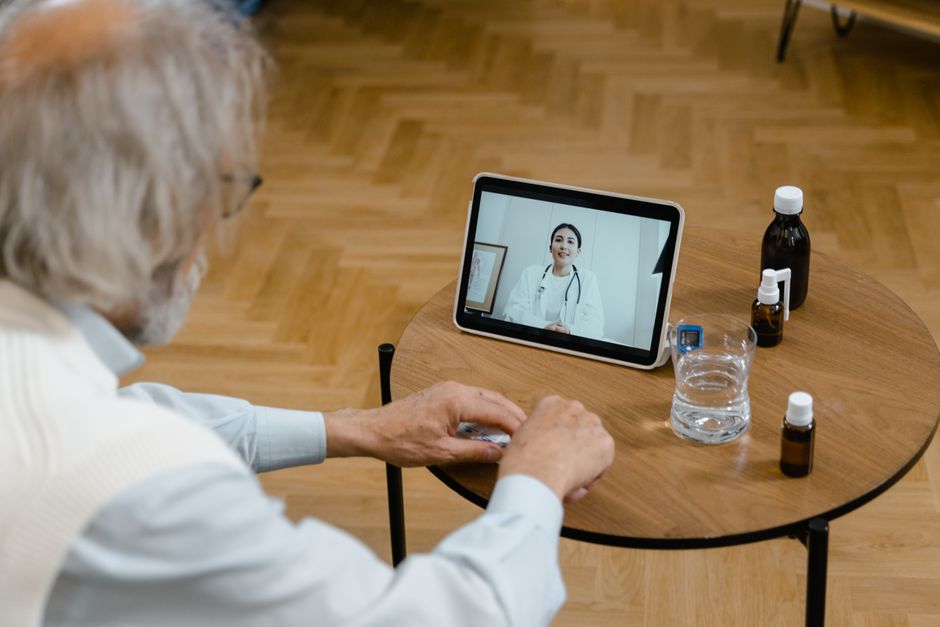
Telehealth visits are now a standard way to see a doctor. Setting one up at home takes about ten minutes of preparation. You need a device with a camera, a stable internet connection, and a quiet, well-lit space. Most healthcare portals send a link or an app invitation before your appointment. Clicking that link at the scheduled time connects you directly to your provider.
What Equipment Do You Need For A Telehealth Appointment?
You do not need expensive gear. A smartphone, tablet, or laptop with a front-facing camera works for nearly all visits. Desktop computers without cameras are the main exception—you would need to add an external webcam.
Your device must have a working microphone and speaker. Most modern devices have these built in. If you use earbuds with a microphone, they often improve sound quality by reducing background noise.
Check your device’s battery level before the appointment. Plugging it in during the visit is a simple safeguard. A dead device in the middle of a consultation wastes your time and your doctor’s.
How Do You Test Your Internet Connection Before The Visit?
A stable connection matters more than a fast one. Video calls need consistent upload and download speeds. The Federal Communications Commission defines broadband as at least 25 Mbps download and 3 Mbps upload, but telehealth platforms work with less.
Run a speed test on your device about an hour before your appointment. Many free websites and apps provide this. If your connection is weak, move closer to your router.
Wi-Fi can be unreliable in certain rooms. If your connection drops frequently, consider using a wired Ethernet connection for laptops. For phones and tablets, moving to a room closer to the router usually solves the problem.
Close unnecessary apps and browser tabs. Video streaming, large downloads, and online gaming on other devices in your home can drain bandwidth. Ask family members to pause these activities during your visit.
How Do You Choose The Right Location In Your Home?
Choose a room with good lighting. Natural light from a window works well. Position the light source in front of you, not behind you. Backlighting turns your face into a dark silhouette on camera.
Privacy is essential. You will discuss personal health information. Pick a room where you will not be overheard. Inform household members that you need uninterrupted time.
Background matters more than you might think. A cluttered or busy background can distract your provider. A plain wall or a tidy bookshelf works well. Some platforms offer virtual backgrounds, but these can occasionally glitch and obscure your face.
Consider your seating. Sit in a comfortable chair at a table or desk. Holding a phone in your hand for twenty minutes gets tiring. Prop it up on a stand or stack of books at eye level.





What Should You Do Before The Appointment Starts?
Complete any pre-visit paperwork. Most healthcare systems send forms through their patient portal. Filling these out beforehand saves time and lets your provider focus on your concerns.
Write down your symptoms and questions. Note when symptoms started, how often they occur, and what makes them better or worse. Have your current medication list ready, including doses. This preparation leads to a more productive visit.
Test your camera and microphone. Most telehealth platforms have a test feature or a pre-call check screen. Use it. Discovering your microphone is muted at the start of the appointment wastes precious consultation time.
Have your pharmacy’s name and location handy. Your doctor may need to send a prescription during the visit. Having this information ready prevents delays.
How Do You Connect To The Telehealth Platform?
Your healthcare provider will send instructions before your appointment. These usually arrive by email, text message, or through a patient portal. Read them carefully. They contain the link or the app download instructions.
Some platforms require you to download an app. Do this at least a day before your appointment. Downloading apps takes time, and you do not want to be rushing through the process minutes before your visit.
Other platforms work entirely through your web browser. In this case, use Chrome, Safari, or Firefox. Some older browsers have compatibility issues with telehealth software.
Join the waiting room about five minutes early. This gives you time to resolve any last-minute technical issues. If you are late, your provider may have to reschedule your appointment.
What If You Have Technical Problems During The Visit?
Technical issues happen. Your video may freeze, or the audio may cut out. Do not panic. Tell your provider what you are experiencing. They are used to this.
Try turning your camera off and on again. If the audio fails, switch to phone audio. Many platforms have a “call me” feature that connects audio through your phone while keeping video on your computer.
If the connection fails completely, call the office directly. Most healthcare systems have a phone number for telehealth support. Keep this number accessible during your visit.
Restarting your device often resolves persistent issues. If you restart, you can usually rejoin the same appointment using the same link. Your provider will be notified that you have reconnected.
How To Set Up Telehealth At Home For Your Visit: A Quick Checklist
Use this checklist before every telehealth appointment.
- Charge your device or plug it in
- Test your camera and microphone
- Check your internet connection
- Choose a well-lit, private room
- Close unnecessary apps and tabs
- Complete pre-visit paperwork
- Write down symptoms and questions
- Have your medication list ready
- Download the app or test the link in advance
- Join the waiting room five minutes early
Telehealth is not appropriate for every medical situation. Chest pain, severe shortness of breath, stroke symptoms, and major injuries require emergency care. Call 911 or go to an emergency room. Telehealth is for routine follow-ups, medication management, mental health visits, and many common illnesses.
Some visits work better in person. Physical examinations have limits over video. Your provider may recommend an in-person follow-up if they need to listen to your heart, examine your skin closely, or perform a procedure. This is normal and does not mean the telehealth visit failed.
Frequently Asked Questions
Can I use my phone for a telehealth appointment?
Yes, smartphones work well for telehealth visits. Place the phone on a stable surface at eye level rather than holding it in your hand.
What if I do not have a camera on my computer?
Use your smartphone or tablet instead. If you must use your computer, you need an external webcam that plugs into a USB port.
How early should I join the telehealth waiting room?
Join about five minutes before your scheduled time. This allows you to resolve technical issues without being late.
Can a telehealth visit replace an in-person appointment?
For many conditions, yes. But some situations require physical examination, and your provider will tell you if an in-person visit is necessary.