
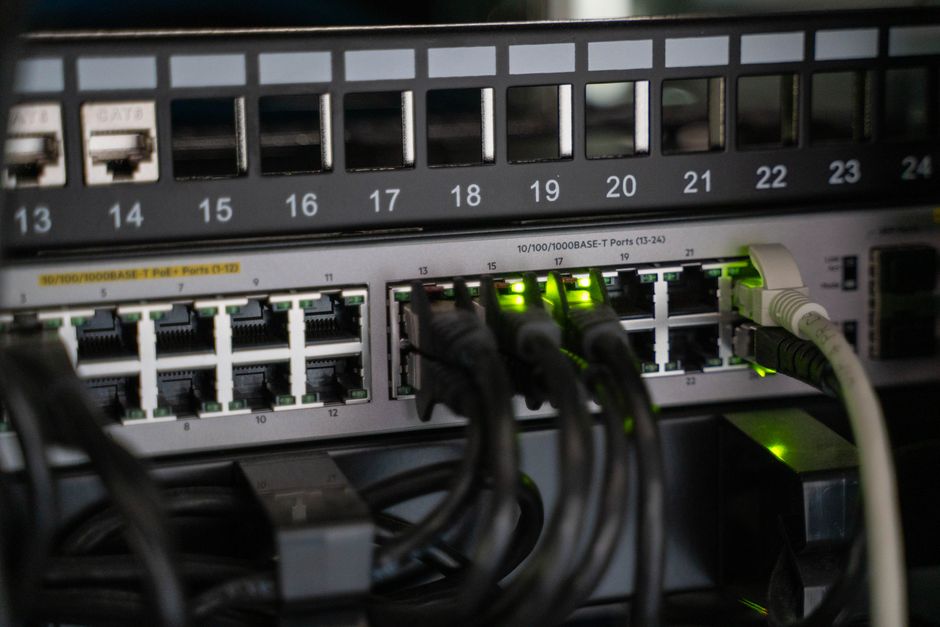
Setting up an Ethernet switch comes down to four steps: place the switch near your router, connect the router to the switch with one Ethernet cable, plug your devices into the switch’s other ports, and confirm the link lights turn on. For a basic unmanaged switch, that is the entire process. There is no software to install and no settings to change. Managed switches add a configuration step, but the physical setup works the same way.
What Does an Ethernet Switch Actually Do?
A switch is a connection point that lets multiple wired devices share one network. It receives data from each connected device and forwards that data only to the port where the intended recipient lives. That is the key difference between a switch and an older device called a hub, which repeated every incoming signal out to every other port. A switch keeps local traffic separated, which reduces collisions and keeps speeds higher when several devices are busy at once.
Most home switches are unmanaged. They have no interface, no login, and no settings. You plug them in and they work. Managed switches include a web interface or app where you can set up VLANs, prioritize traffic, or monitor ports. Small businesses and home labs use managed switches. Most households do not need one.
One detail that surprises people: a switch does not create a new network. It extends the network your router already runs. Your router still assigns IP addresses, handles internet traffic, and manages the connection to your provider.
What You Need Before You Start
Gather these items first. The setup goes faster when everything is within reach.
- An Ethernet switch with enough ports for your devices, plus one for the router
- One Ethernet cable to connect the router to the switch
- One Ethernet cable per device you plan to connect
- A power outlet near where the switch will sit
- A router with at least one free LAN port
Check your cable type. Cat5e supports speeds up to 1 Gbps and works for most home networks. Cat6 and Cat6a handle higher speeds and longer runs. For a typical home setup, Cat5e is enough. If you are wiring a large house or running cable through walls, Cat6 gives you more headroom for future upgrades.
Port count matters more than most people expect. A five-port switch connects four devices after you use one port for the router. Count your devices — computers, game consoles, printers, smart TVs, network storage — before you buy. Buying one size up is usually cheaper than buying a second switch later.
How To Set Up An Ethernet Switch Step By Step
Follow these steps in order. The whole process takes about ten minutes for an unmanaged switch.
Step 1: Place the switch. Put it near your router and near the devices you want to connect. Switches have no fans in most home models, so they run silent, but they still need airflow. Avoid stacking them on top of other electronics that produce heat.
Step 2: Connect the power. Plug the switch’s power adapter into a wall outlet and into the switch. Most switches power on immediately. You should see a power light come on.
Step 3: Connect the router to the switch. Take one Ethernet cable and plug one end into any LAN port on your router. Plug the other end into any port on the switch. Do not use the router’s WAN or internet port — that port is for your modem connection.
Here is the part that trips people up. On modern switches, it usually does not matter which port you use. Auto MDI-X, a feature built into nearly all switches made in the last two decades, detects the cable type automatically. Older switches had a dedicated uplink port. If yours has one, use it for the router connection.
Step 4: Connect your devices. Plug each device into its own port on the switch using an Ethernet cable. Run the cable to the device’s network port. You should hear a click when the connector seats properly.
Step 5: Check the link lights. Each connected port should show a small light, usually green or amber. A solid light means a working connection. A blinking light means data is moving. No light means the cable is loose, the cable is faulty, or the device is off.
Step 6: Test the connection. Open a browser on one connected device and load a website. If it loads, your network is working. If it does not, check the cable between the router and the switch first — that is the most common point of failure.





Do You Need to Configure Anything?
For an unmanaged switch, no. There is nothing to configure. The switch passes traffic automatically and your router continues to handle IP addresses through DHCP.
Managed switches are different. You typically reach the switch’s settings by typing its IP address into a browser, or through a manufacturer app. From there you can assign VLANs to separate traffic, set port priorities, or limit which devices can connect. Most home users never touch these settings.
Some managed switches ship with a default IP address. If you cannot reach the interface, check the manual for that address. A few models require you to connect directly to the switch first before it appears on your network.
If you bought a managed switch but only need basic connectivity, you can often leave it in its default mode. It will behave like an unmanaged switch until you change something.
Common Problems and How to Fix Them
Most switch issues come down to cables, ports, or a loop in the network.
No link light on a port. Try a different cable. Try a different port on the switch. Try a different device. This isolates whether the problem is the cable, the port, or the device.
Devices connect but have no internet. Check the cable between the router and the switch. Make sure it is in a LAN port, not the WAN port. Confirm the router itself has internet by testing a device connected directly to it.
Network slows down or stops. A switching loop can cause this. A loop happens when two ports on the same switch connect to each other, directly or through a path of cables. Managed switches use Spanning Tree Protocol to block loops automatically. Unmanaged switches generally do not, though many include basic loop detection. If you suspect a loop, unplug cables one at a time until the network recovers.
One device is slow while others are fine. Check that device’s network adapter settings and its cable. A damaged cable can drop a connection from 1 Gbps to 100 Mbps without failing completely. The link light often still shows.
One more thing worth knowing: adding a switch does not increase your internet speed. Your internet speed is capped by your plan and your modem. A switch only helps when you have more wired devices than your router has ports, or when you need wired connections in a room far from the router.
Switch vs. Router vs. Modem: What Is the Difference?
These three devices do different jobs, and mixing them up causes most setup confusion.
- Modem — connects your home to your internet provider’s network
- Router — shares that connection among your devices and assigns IP addresses
- Switch — adds more wired ports to an existing network
A switch cannot replace a router. It has no way to assign IP addresses or route traffic to the internet. If you connect a switch directly to a modem with no router in between, your devices will not get online.
Many home setups combine a modem and router in one box. That is fine. You still connect the switch to a LAN port on that combined device exactly the same way.
Where Should You Place the Switch?
Placement affects both cable runs and heat. Put the switch somewhere central if you can. Shorter cable runs mean fewer signal problems and less cable to buy.
Keep it out of enclosed cabinets without airflow. Switches run warm, and heat shortens the life of the electronics inside. A shelf or the top of a desk works well.
If you need wired connections in several rooms, you have two options. Run long cables from one central switch, or place a second switch in a distant room and connect it back to the first one with a single cable. The second approach is called daisy-chaining, and it works well as long as you do not create a loop.
Frequently Asked Questions
Do I need a managed switch for a home network?
No. An unmanaged switch handles typical home needs and requires no setup. Managed switches are useful when you need VLANs, traffic prioritization, or port monitoring.
Can I connect a switch directly to my modem?
No. A switch cannot assign IP addresses or route traffic, so devices will not get online without a router in between. Always connect the switch to a LAN port on your router.
Does adding a switch slow down my internet?
No. A switch adds ports without reducing your internet speed, which is set by your plan and modem. It may actually improve local file transfers between wired devices.
Which port on the switch should the router plug into?
Any port works on modern switches because of a feature called Auto MDI-X. If your switch has a labeled uplink port, use that one for the router.