
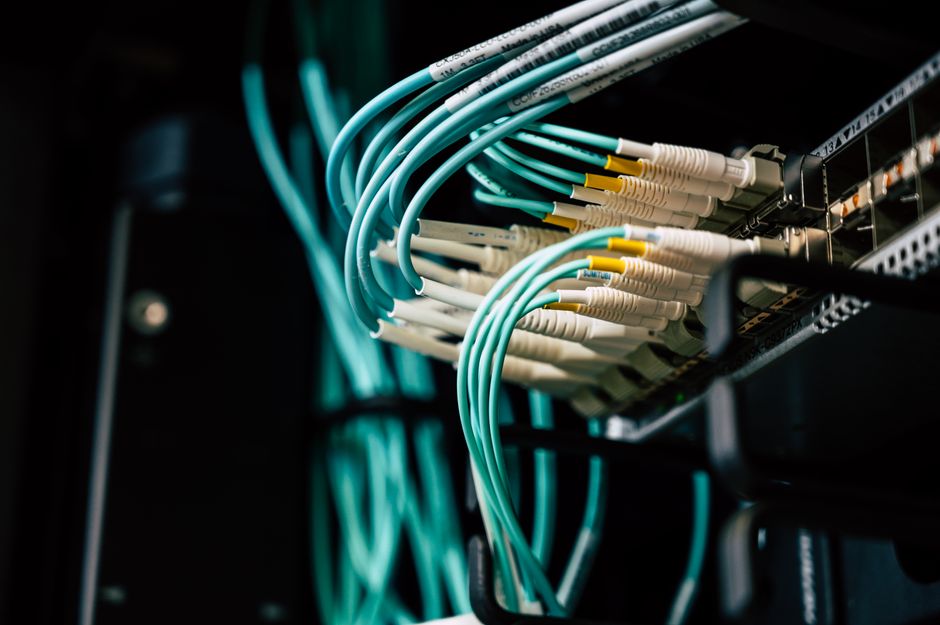
An Ethernet switch is the simplest way to add more wired internet ports to your home network. You plug it into your router, connect your devices to the switch, and the network expands instantly. There is no software to install and no configuration screen to open. Setup takes less than five minutes and requires only the switch, two Ethernet cables, and your devices.
What Does an Ethernet Switch Actually Do?
A switch creates a local network within your home. It takes the single internet connection from your router and shares it with every device you plug into the switch ports. Each connected device gets its own dedicated connection to the network.
This is different from a Wi-Fi extender or a repeater. Those devices rebroadcast a wireless signal. A switch does not create Wi-Fi at all. It only works with physical cables. If your device has no Ethernet port, a switch will not help it connect.
Switches are purely mechanical network devices. They read the data packets coming in and send them only to the port where the destination device is connected. This makes them fast and reliable. There is no processing delay like you get with wireless repeaters.
What You Need Before You Start
You need four things to set up an Ethernet switch. The switch itself, a router with a spare LAN port, two Ethernet cables, and the devices you want to connect.
The switch is the hub. Most home switches have 5 or 8 ports. A 5-port switch gives you four usable ports because one port connects to the router. An 8-port switch gives you seven usable ports.
Ethernet cables matter more than most people realize. Use at least Cat5e or Cat6 cable. Cat5e supports gigabit speeds. Cat6 supports gigabit speeds with better shielding against interference. Both are fine for home use. Avoid old Cat5 cable if you want full gigabit speed.
Your router must have a free LAN port. Most home routers have four. If all four are full, you can unplug a device and move it to the switch instead. The router does not need any special settings changed.
How To Connect the Switch Step by Step
Start by turning everything off. Unplug the router from power. Unplug the devices you plan to connect to the switch.
Plug one end of the first Ethernet cable into any LAN port on your router. Plug the other end into any port on the switch. It does not matter which port you use. All ports on a simple unmanaged switch are identical.
This cable is called the uplink. It carries internet traffic between the router and the switch. On unmanaged switches, there is no dedicated uplink port. Any port works.
Now plug your devices into the remaining switch ports. Use the second Ethernet cable for each device. Plug one end into the device and the other into an empty switch port.
Plug the switch into a power outlet. Most switches use an external power adapter. Some small switches are powered through the Ethernet cable itself, a feature called Power over Ethernet. If your switch has no power port, it likely gets power from the router. Check the product manual if you are unsure.
Plug the router back into power. Wait two minutes for the router to fully boot. Then power on your devices. The network should work immediately.





How To Use An Ethernet Switch Setup Connection Tips for Best Performance
Place the switch where it has good airflow. Switches generate heat, and stacking papers or boxes on top can cause overheating. Overheating can cause dropped connections or port failures.
Keep the switch near your devices if possible. Ethernet cable has a maximum length of 100 meters or about 328 feet. Beyond that, the signal degrades and you lose speed. For home use, distances are rarely an issue.
Use the shortest cables that comfortably reach. Long cables do not hurt performance, but they create clutter and can be tripped over. Cable management is part of a reliable network.
Label your cables. When you have six cables plugged into a switch, knowing which one goes to which room saves time later. A simple piece of tape and a marker works fine.
For gigabit speeds, make sure every device supports gigabit Ethernet. Most devices made in the last decade do. Older devices may only support 100 megabit speeds. The switch will automatically negotiate the fastest speed both sides support.
Unmanaged vs Managed Switches: Which Do You Need?
There are two main types of switches for home use. Unmanaged and managed.
Unmanaged switches are plug-and-play. No configuration is needed. You plug them in and they work. They are cheaper and perfectly fine for almost every home network. If you are setting up a switch for your living room, home office, or gaming setup, an unmanaged switch is the right choice.
Managed switches allow you to configure settings like virtual LANs, traffic prioritization, and port mirroring. These features matter in business networks but are rarely useful at home. Managed switches cost more and require technical knowledge to use effectively.
There is also a middle category called smart switches or web-managed switches. These offer a few configuration options through a simple web interface. They are useful if you want to set up separate networks for guests or smart home devices. For basic network expansion, they offer no advantage over unmanaged switches.
Common Mistakes People Make With Ethernet Switches
The most common mistake is plugging the switch into itself. If you connect one switch port to another port on the same switch, you create a network loop. This can cause the entire network to slow down or stop working entirely.
Another mistake is placing the switch too far from the router. The uplink cable still counts toward the 100-meter limit. If your router is in the basement and your switch is in the attic, the total cable run may exceed the limit.
Some people buy a switch when they actually need a router. A switch only expands your existing network. It does not create a new network or provide internet on its own. If you need to share an internet connection between separate households, you need a router, not a switch.
People also confuse switches with hubs. Hubs are an older technology that sends data to every port instead of only the destination port. Hubs are obsolete and slow. If you have an old hub, replace it with a switch. The performance difference is significant.
When You Should Use a Switch Instead of Wi-Fi
Ethernet is faster and more stable than Wi-Fi. A wired connection has lower latency and no signal interference. For gaming, video calls, and large file transfers, a switch is the better choice.
Wi-Fi is convenient but has limits. Walls, floors, and appliances can interfere with the signal. Distance from the router reduces speed. If you have a device in a fixed location that needs reliable internet, plug it into a switch.
Smart TVs, desktop computers, and gaming consoles are the most common devices to connect via a switch. These devices benefit from stable connections and often sit in one place for years.
Streaming devices like Roku or Apple TV also work well on a switch. Wired connections eliminate buffering caused by Wi-Fi drops. This is especially noticeable when streaming 4K video, which requires a steady connection.
How Many Devices Can You Connect to One Switch?
With a single home switch, the practical limit is the number of ports you have. A 5-port switch handles four devices. An 8-port switch handles seven.
You can connect multiple switches together to add more ports. Plug a cable from one port on the first switch into any port on the second switch. This works because switches automatically learn the network layout.
In theory, you can connect many switches in a row. In practice, each switch adds a tiny amount of delay. For home use, two or three switches in a chain will not cause any noticeable slowdown. The total cable distance between your router and the farthest device still cannot exceed 100 meters.
Does an Ethernet Switch Slow Down Your Internet?
No. A switch adds no meaningful delay to your network traffic. The switching process happens in hardware and takes microseconds.
Your internet speed is limited by your internet service provider and your router, not the switch. If you have a 300 megabit internet plan, a gigabit switch will not increase it. If you have a gigabit plan, a switch will not reduce it.
The only way a switch can slow you down is if you use a switch that only supports 100 megabit speeds. A 100 megabit switch will cap every connected device at 100 megabits per second. Check the switch specifications before buying. Look for “gigabit” or “10/100/1000” in the product description.
Power Over Ethernet: A Special Case
Some switches support Power over Ethernet, often written as PoE. This allows the switch to send electrical power through the Ethernet cable to the connected device.
PoE is useful for devices like security cameras, wireless access points, and VoIP phones. These devices can be placed anywhere a cable reaches, without needing a nearby power outlet.
If you do not have PoE devices, you do not need a PoE switch. PoE switches cost more and generate more heat. A standard switch is sufficient for computers, TVs, and game consoles.
Check whether your switch supports PoE before buying. The ports on a PoE switch are often labeled with “PoE” or have a small power icon next to them.
When to Consider a Network Upgrade Instead
A switch solves the problem of not enough ports. It does not solve the problem of a slow router.
If your internet feels slow even on a wired connection, the switch is not the cause. The bottleneck is likely your router, your internet plan, or your internet service provider. Upgrading the switch will not fix those issues.
If your router is more than five years old, it may not support the latest Wi-Fi standards or gigabit wired speeds. A newer router will improve both wired and wireless performance. The switch can stay the same.
If you have frequent dropped connections or devices that disconnect randomly, test each cable. Faulty Ethernet cables cause intermittent problems. Replace any cable that shows visible damage or has been bent sharply.
Frequently Asked Questions
Do I need to configure anything after plugging in an Ethernet switch?
No. Unmanaged switches work immediately with no configuration. Managed switches may require initial setup, but most home users do not need one.
Can I connect an Ethernet switch to a Wi-Fi router?
Yes. Plug one end of an Ethernet cable into any LAN port on the router and the other end into any port on the switch. The switch will then share the router’s connection with all connected devices.
What is the difference between an Ethernet switch and a router?
A router connects your home network to the internet and assigns IP addresses. A switch only expands the number of wired ports on your existing network. A switch cannot provide internet access on its own.
How many Ethernet switches can I connect together?
You can connect multiple switches in a chain. For home use, two or three switches will work fine. The total cable distance from the router to the farthest device must stay under 100 meters.