
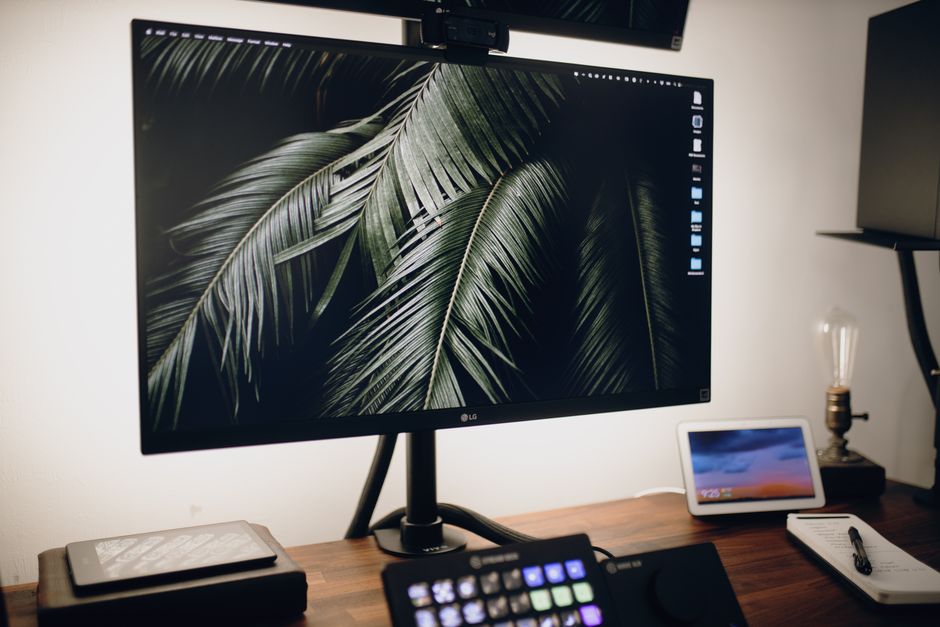
You cannot change the physical height of a monitor with software — but you can lower where content appears on it in seconds. The quickest fixes are adjusting your display resolution, changing scaling settings, or using your operating system’s built-in display positioning controls. If you mean lowering the monitor itself, that is a hardware adjustment involving your stand, desk, or chair height.
This article covers both. The phrase “lower monitor height” gets used for two very different problems, and the fix depends entirely on which one you have. Screen content sitting too high on the display is a software issue. The monitor sitting too high for your neck is a physical setup issue. Both are fixable, and neither requires special tools.
How To Lower Monitor Height Quick Fixes That Work
Lowering the physical height of your monitor is the most common reason people search this term. The fix depends on what your monitor is currently sitting on and what kind of stand it has.
The fastest options, in order of how quickly you can do them:
- Remove whatever the monitor is sitting on — books, a riser, a box, a shelf. This is the single most common cause of a monitor being too high.
- Lower your desk chair if it has height adjustment. This brings your eyes down relative to the screen without touching the monitor.
- Check whether your monitor stand has a height adjustment slider or pin. Many stands do, and people do not realize it.
- If the stand is fixed and the monitor is still too high, a VESA-compatible arm or a lower-profile stand is the practical solution.
Ergonomic guidance generally suggests the top of the screen sit at or slightly below eye level when you are seated comfortably. That is a widely cited guideline, not a rigid rule. The exact position depends on your height, your chair, and whether you wear glasses. What matters most is that you are not tilting your head up or down for extended periods.
If your monitor is on a riser because you also use a laptop below it, you have a conflict. You can lower the external monitor, but then the laptop screen sits awkwardly. A dual-arm setup or a laptop stand that raises the laptop independently usually solves this better than compromising both screens.
Why Does My Screen Content Sit Too High On The Monitor?
This is a different problem entirely. The monitor is fine — the content is positioned wrong within the screen. This usually happens after a resolution change, a driver update, a new cable, or connecting an external display.
Common causes:
- Resolution mismatch. If your display resolution does not match the monitor’s native resolution, the image may not fill the screen correctly or may be positioned off-center.
- Scaling settings. Operating system scaling can shift where content renders, especially on high-DPI displays.
- Overscan or underscan. This is common when connecting a computer to a TV. The display cuts off edges or adds black borders, which shifts content position.
- Multiple monitor arrangement. If you have two monitors, the operating system positions content based on how you arranged them in display settings.
The fix is almost always in your display settings. On Windows, right-click the desktop and open Display Settings. On macOS, open System Settings and go to Displays. Check that the resolution matches the monitor’s native resolution — this is listed in your monitor’s specifications or manual.
For overscan issues on a TV, look for a setting called “Just Scan,” “1:1 pixel mapping,” or “Screen Fit” in your TV’s picture menu. The exact name varies by manufacturer. This is a TV-side fix, not a computer-side fix, and it resolves most cases where content appears shifted or cut off.
How Do I Move My Screen Content Down Without Changing Resolution?
You can shift content position in most operating systems without touching resolution. The method depends on your system.
On Windows, open Display Settings and look for the monitor arrangement diagram. If you have more than one display, dragging the monitor icons changes how content maps across screens. For a single monitor, the position adjustment is limited — Windows does not offer a simple vertical offset slider for a single display in standard settings.
On macOS, the Arrangement tab in Displays settings lets you drag display positions when you have multiple monitors. For a single display, macOS does not provide a content offset control either.
If you need to shift content on a single monitor and your operating system does not offer it, the options are:
- Check your monitor’s on-screen display menu. Many monitors have a position or phase adjustment for analog connections, though this does not apply to HDMI or DisplayPort in most cases.
- Use your graphics card control panel. NVIDIA, AMD, and Intel all provide display scaling options that can affect positioning.
- Adjust the monitor’s physical tilt. This does not move content, but it changes your viewing angle, which solves the practical problem for many people.
Honest note: for a single monitor on a digital connection, there is often no clean way to shift content vertically within the screen. The content fills the screen by design. If it looks “too high,” the real issue is usually your physical viewing position, not the content placement.





What Is The Correct Monitor Height For Neck And Eye Comfort?
The widely cited ergonomic guideline is that the top of the screen should be at or slightly below eye level. This positions your gaze slightly downward, which is the natural resting position for the eyes and reduces neck strain.
Viewing distance matters too. A common recommendation is roughly an arm’s length between your eyes and the screen. That is approximately 20 to 28 inches for most adults, though the ideal distance depends on screen size and your vision.
These are general guidelines from ergonomics research and workplace safety organizations, not precise medical prescriptions. Individual factors — your height, torso length, vision correction, and any existing neck or eye conditions — change what works best for you.
What the evidence does support: sustained awkward neck posture is associated with musculoskeletal discomfort. Tilting your head up or down for hours at a time puts load on the cervical spine. The goal is a neutral neck position, meaning your ears roughly align over your shoulders when you look at the screen.
If you wear bifocals or progressive lenses, the standard advice may not fit you. These lenses require you to tilt your head to find the right focus zone. Many people with bifocals find a lower monitor position works better. Some clinicians recommend single-vision computer glasses for this reason, though that is a conversation to have with your eye care provider.
Can I Lower Monitor Height With Software Only?
Software can change where content appears, but it cannot physically lower the monitor. The distinction matters because people search for this expecting a display setting that moves the whole screen down.
What software can do:
- Change resolution, which affects how content fills the screen
- Adjust scaling, which changes the size of interface elements
- Reposition content across multiple monitors
- Rotate the display orientation
What software cannot do:
- Move the physical monitor down
- Create a vertical offset on a single display beyond what the graphics driver allows
- Change the monitor’s physical height relative to your eyes
If your actual goal is reducing neck strain, software fixes address symptoms at best. The physical setup — monitor height, chair height, desk height, and viewing distance — is what determines your posture. No display setting changes that.
When Should You See A Doctor About Neck Or Eye Strain?
Monitor setup adjustments help with everyday discomfort. They do not treat underlying conditions.
See a healthcare provider if you experience:
- Neck pain that persists for more than a few weeks despite ergonomic changes
- Numbness, tingling, or weakness in your arms or hands
- Headaches that are frequent, worsening, or interfere with daily function
- Vision changes, eye pain, or persistent double vision
These symptoms can have causes unrelated to monitor position. A doctor can assess whether your symptoms are musculoskeletal, neurological, vision-related, or something else.
Eye strain from screens — sometimes called digital eye strain — is common and generally not dangerous. Symptoms include dry eyes, blurred vision, and tired eyes. The evidence on whether blue light filters reduce eye strain is mixed. Some studies suggest they make little difference for eye strain specifically, though they may affect sleep timing if used in the evening. Adjusting screen brightness, taking breaks, and blinking consciously are more consistently supported.
The 20-20-20 guideline is widely recommended: every 20 minutes, look at something 20 feet away for 20 seconds. It is a simple habit, and while large trials on its effectiveness are limited, it is low-risk and addresses the sustained near-focus that contributes to eye strain.
Quick Setup Checklist For Lower Monitor Position
If you want the fastest path to a lower monitor position, work through this in order:
- Remove anything under the monitor that raises it
- Check your monitor stand for a height adjustment you have not used
- Lower your chair if your feet still rest flat on the floor or a footrest
- Adjust the monitor tilt so the screen faces you squarely
- Move the monitor closer or farther to find your comfortable viewing distance
- If the monitor is still too high, consider a VESA arm or a different stand
Most people find that removing a riser or lowering the chair solves the problem. The rest is fine-tuning.
Frequently Asked Questions
How do I lower my monitor height quickly?
Remove anything the monitor is sitting on, check for a height adjustment in the stand, or lower your chair. These three steps solve most cases in under a minute.
Can I lower my monitor with software?
No. Software can change resolution, scaling, and content position across multiple displays, but it cannot physically lower the monitor or create a vertical offset on a single screen.
What is the correct monitor height for my eyes?
The general guideline is that the top of the screen should sit at or slightly below eye level when you are seated comfortably. Individual factors like height, vision correction, and existing conditions affect what works best.
Why does my screen content look too high on the monitor?
This is usually a resolution mismatch, a scaling setting, or an overscan issue when connected to a TV. Check that your resolution matches the monitor’s native resolution and look for a “Screen Fit” or “1:1 pixel mapping” setting on the display.